Set up your public club page
Give your club a shareable page with your details, squad, and selected fixtures.
Every club gets a public page at crickizuna.com/clubs/your-name that anyone can view without signing in. You control the address, what it shows, and whether it's visible at all.
- 1
Open Settings → Public page. Set your page address (the slug) — it becomes your public link, crickizuna.com/clubs/your-slug. Optionally add a banner image, achievements and sponsors, and turn on “Show members” if you want your squad listed. Select “Save public page”.
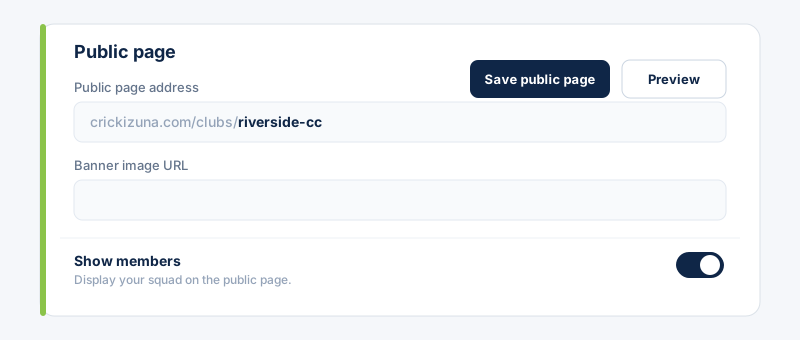 Use “Preview page” to see exactly what visitors will see before you publish.
 - 2
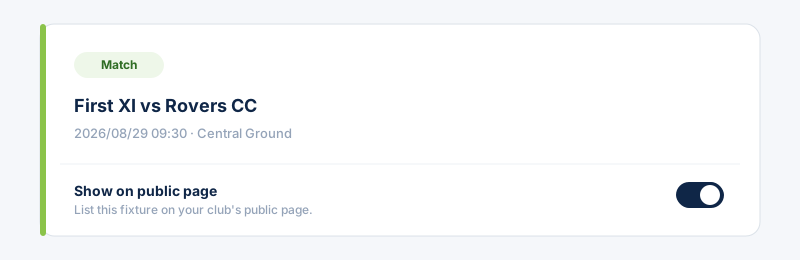
Choose which events appear. On each fixture, use the “Show on public page” toggle — only the events you pick are listed publicly; everything else stays members-only.
- 3
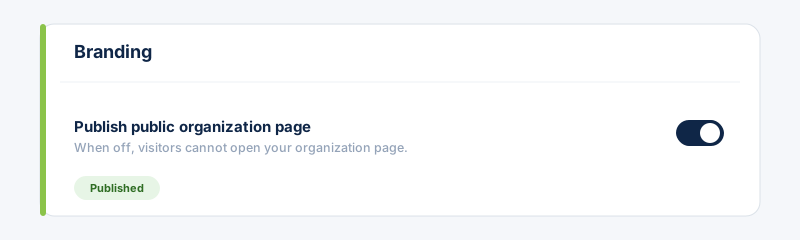
Publish it: open Settings → Branding and turn on “Publish public page”. While it's off, visitors can't open the page.
- 4
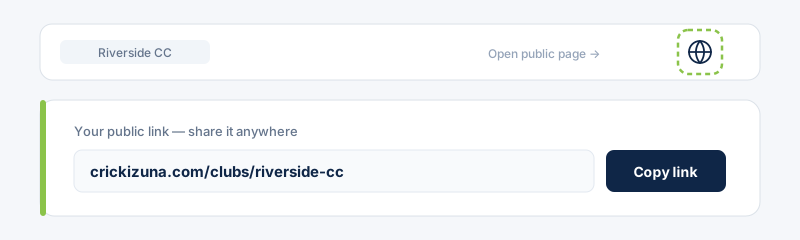
Share your link. Tap the globe icon in the app header to open your live page, and share crickizuna.com/clubs/your-slug anywhere — social media, chat, or email.