Turn on notifications on your phone
Get alerts on your device for new events, dues, and broadcasts — even when CricKizuna is closed.
CricKizuna can push alerts straight to your phone or computer. You enable it once per device. On iPhone there's one extra step first: add CricKizuna to your Home Screen.
- 1
iPhone only — add CricKizuna to your Home Screen first: open it in Safari, tap the Share button, choose “Add to Home Screen”, and open it from that icon from now on. On Android and computers, skip this step and go straight to Enable below — notifications work in a normal browser tab.
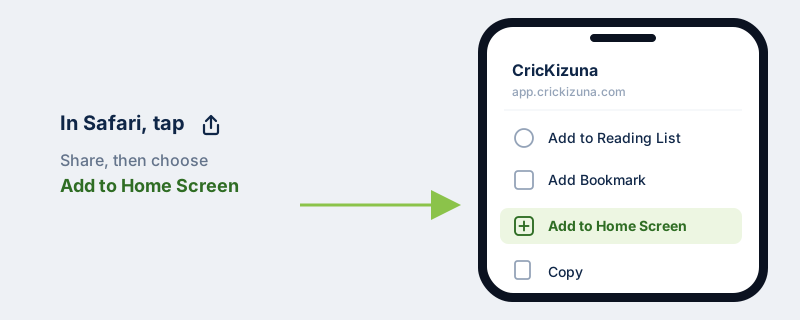 Android (Chrome) and desktop browsers support web notifications in a normal tab, with no install needed. Only iPhone requires the Home Screen app — Apple doesn't allow web push from a plain Safari tab.
 - 2
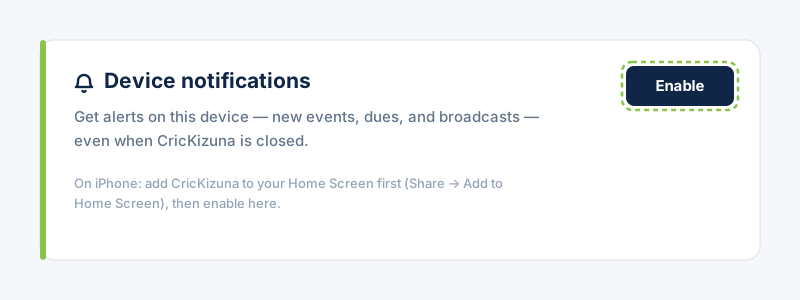
Go to Settings → Notifications and find the “Device notifications” card. Tap Enable.
- 3
Your browser asks for permission. Tap Allow.
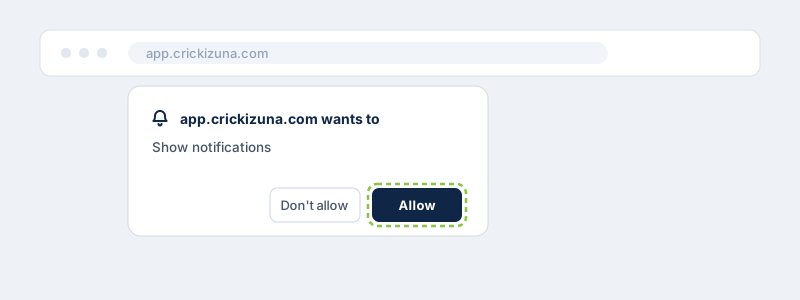 If you tapped “Don't Allow” before, the button stays disabled. Re-allow notifications for the site in your browser settings, then reload and try again.
 - 4
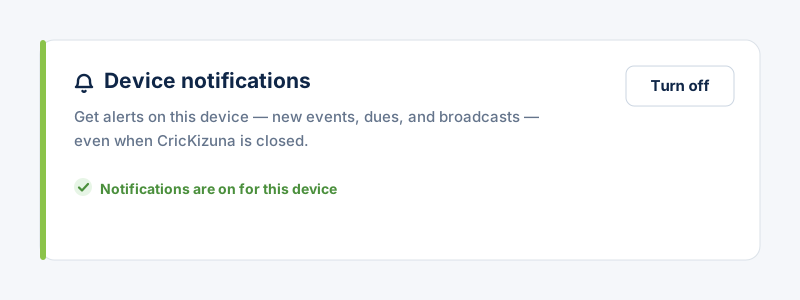
The card now says notifications are on. You'll get a test alert to confirm it works. Manage which kinds you receive (events, dues, broadcasts) with the toggles on the same page.